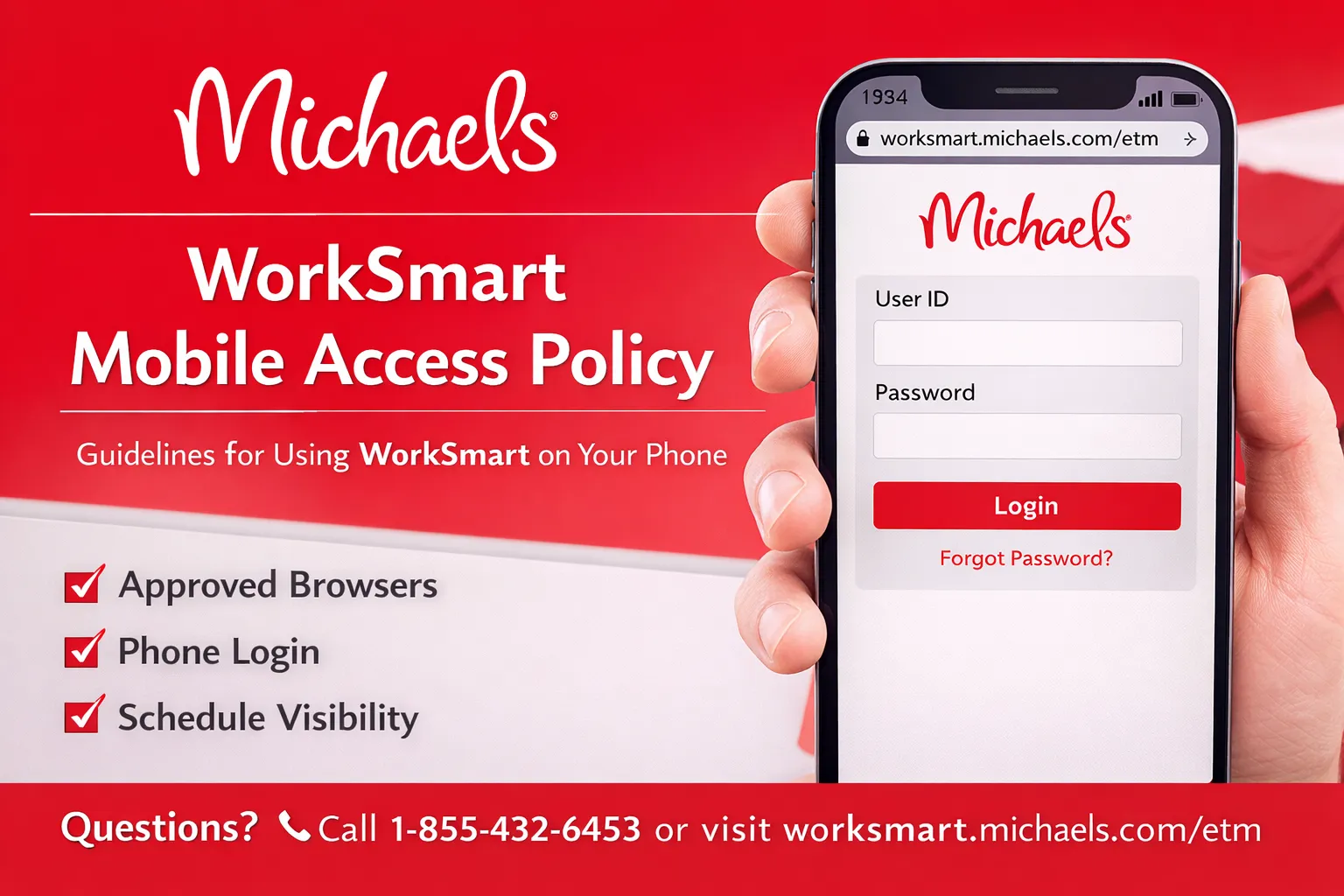
Many Michaels employees ask whether they can log into WorkSmart on their phone. The short answer is yes. You can access WorkSmart from a mobile device using a web browser. You do not need a laptop or desktop computer to check your schedule or review basic work information. This post explains how mobile access works, what you can see, what you cannot see, and what to expect when you use WorkSmart on a phone.
This information helps new hires, current team members, and managers understand how WorkSmart functions outside the store. It also clears up common confusion about apps, permissions, and viewing other employees’ schedules.
1. What WorkSmart Is?
WorkSmart is the employee scheduling and workforce management system that Michaels uses. It runs on the Infor Workforce Management platform. Employees use WorkSmart to view schedules, track time, request time off, and review certain employment details.
WorkSmart connects to Michaels’ Single Sign-On system. This means you use the same User ID and password that you use for other Michaels systems. You do not create a separate WorkSmart account.
WorkSmart works through a web browser. Michaels does not provide a standalone mobile app for WorkSmart.
2. Can You Use WorkSmart on a Phone?
Yes. You can log into WorkSmart on a phone.
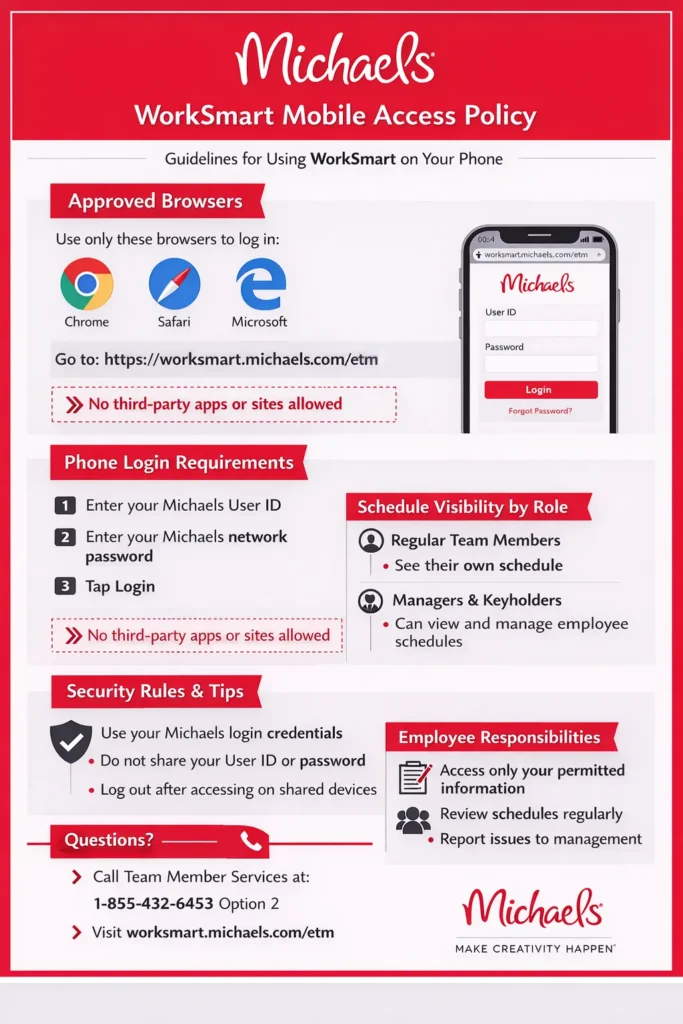
WorkSmart works on most modern smartphones. You use a standard mobile browser such as Chrome or Safari. The system does not require special software or downloads.
You access the same website on a phone that you use on a computer. The layout adjusts to a smaller screen, but the core features stay the same.
Employees often use WorkSmart on their phone to check schedules, confirm shift times, or review time-off balances when they are away from the store.
3. Official Way to Log In on a Phone
Follow these steps to log into WorkSmart on your phone.
- Open a mobile web browser.
- Go to the official WorkSmart login page.
- Enter your Michaels User ID.
- Enter your Michaels network password.
- Tap the Login button.
The official login address is:
https://worksmart.michaels.com/etm
You should bookmark this page if you use it often.
Avoid logging in through links from unofficial websites. Some third-party sites look similar but do not belong to Michaels.
4. What You Can See as a Regular Team Member?
Most Michaels employees have basic access in WorkSmart. This access allows you to manage your own schedule and personal work information.
As a regular team member, you can usually see the following:
- Your assigned work schedule
- Your upcoming shifts
- Your past shifts
- Time-off balances
- Time-off requests
- Certain pay-related details
You usually find your schedule under a section called “My Schedule.” The name may vary slightly based on system updates, but the function stays the same.
You cannot edit schedules or change assigned shifts unless a manager makes changes for you.
5. Viewing Other Employees’ Schedules
This is a common question. The answer depends on your role.
Regular team members
- You cannot view other employees’ schedules.
- You can only see your own schedule.
- The system hides coworker schedule data by default.
This restriction protects employee privacy and follows company policy.
Managers and keyholders
- Managers can view other employees’ schedules.
- Managers can access store-wide schedules.
- Managers can make scheduling changes.
If you log in and do not see options such as “Store Schedule” or “Employee Schedule,” your role does not include that permission.
This behavior is normal and does not indicate an error.
6. Mobile Experience
WorkSmart works on phones, but it does not behave like a modern mobile app. The system was originally designed for desktop use.
When you use WorkSmart on a phone, you may notice:
- Small text
- Tight spacing
- Side menus that require scrolling
- Buttons that appear close together
Landscape mode often improves readability. Rotating your phone can make menus easier to use.
Some pages load slowly on mobile connections. This usually resolves by refreshing the page or switching to Wi-Fi.
7. No Official WorkSmart App
Michaels does not offer an official WorkSmart mobile app.
Any app or website that claims to be a “WorkSmart Michaels app” is not officially supported unless Michaels specifically announces it. Employees should avoid entering login credentials into unknown apps or websites.
The correct and supported method is to use a web browser and the official WorkSmart login page.
8. Security and Login Information
WorkSmart uses Michaels Single Sign-On.
This means:
- You use your Michaels User ID.
- You use your Michaels network password.
- Password changes affect all linked systems.
If you forget your password, use the “Forgot Password” link on the login page or contact your manager or HR support.
Do not share your login information with coworkers. Managers do not need your password to manage schedules.
9. Common Login Issues on Mobile
Employees sometimes experience login problems on phones. These issues usually have simple fixes.
Common causes include:
- Cookies disabled in the browser
- Expired passwords
- Using an in-app browser
- Poor internet connection
To reduce problems:
- Use Chrome or Safari.
- Enable cookies.
- Avoid logging in from social media apps.
- Refresh the page if it freezes.
- Switch to Wi-Fi if mobile data is slow.
If problems continue, contact Team Member Services or your store manager.
10. When to Use a Computer Instead?
Although mobile access works, some tasks are easier on a computer.
Use a desktop or laptop if you need to:
- Review complex schedules
- Approve or edit multiple shifts
- Perform manager-level scheduling tasks
- View detailed reports
Phones work best for quick checks and basic tasks.
11. Why Permission Limits Matter?
Many employees believe WorkSmart is broken when they cannot see certain features. In most cases, the system works correctly.
WorkSmart shows options based on role permissions. The system hides functions that your role does not require.
This design helps:
- Protect employee data
- Prevent scheduling errors
- Keep workflows organized
If your role changes, your access updates automatically.
12. Best Practices for Employees
To use WorkSmart smoothly on your phone:
- Bookmark the official login page.
- Log out when using shared devices.
- Use landscape mode when needed.
- Double-check dates and times.
- Ask a manager if something looks incorrect.
Do not rely on screenshots or unofficial tools to track schedules. Always confirm details in WorkSmart.
13. Summary
You can log into WorkSmart on your phone using a mobile browser. You do not need a special app. You use the same login credentials as other Michaels systems.
Regular team members can view their own schedules and basic work information. Managers can view and manage other employees’ schedules. Access depends on role permissions.
The mobile experience works but may feel limited. Landscape mode and patience help.
When used correctly, WorkSmart provides a reliable way to stay informed about your work schedule anytime and anywhere.